
You don’t need to understand AI. You just need to ask it a question.
Copy a prompt. Paste it into ChatGPT. Press Enter. That’s the whole first lesson.
Pick something you want help with
Don’t start with “what is AI.” Start with something useful. Any of these work:
Open ChatGPT — or Gemini if you have Gmail
This is often the hardest step. You may be asked to sign in or create a free account. That’s normal.
What you should see: a big empty box that says something like “Ask anything” or “Message ChatGPT.” That’s where you’ll paste.
If you see a login wall: create a free account with your email, or use Gemini if you already have Gmail. If you get stuck, email gary@stoufferai.com.
Copy this question. Paste it. Press Enter.
Use this one first. It’s useful, and you’ll see a real answer in seconds.
I’m going to Charleston for three days. Give me three things I should see, two good places to eat, and a simple one-day itinerary. Keep it easy to follow and don’t assume I know the city.
Then click in the chat box, paste, and press Enter (or tap Send).
Don’t like the answer? Just ask again.
You don’t have to start over. Stay in the same chat and try one of these:
Your first answer doesn’t have to be perfect. Just keep talking to AI.
You just used AI
You don’t need to know how it works. You just need to tell it what you want.
Did you get an answer?
Not yet? That’s okay.
Most people get stuck on the sign-in screen, not on the prompt. Watch Gary do it, or email me and I’ll walk you through it.
4–5 minute walkthrough · or email gary@stoufferai.com
You don’t need a special formula
Just tell AI four things. We call this C.A.R.E. — a simple way to give AI more information so the answer fits you.
Who you are and your situation. Age, town, health, what you’re dealing with.
Exactly what you need it to do: explain, list, compare, draft a letter.
Plain English, a numbered list, a letter, questions for your doctor.
No jargon. No long disclaimers. No “see a doctor” when you already have one.
Context: I am a 72-year-old woman with Type 2 diabetes and high blood pressure. My doctor mentioned my A1C is “trending up” at my last visit.
Action: Explain what a rising A1C means for someone in my situation, what typically causes it, and what lifestyle or medication changes are commonly considered.
Result: Give me a plain-English explanation followed by a numbered list of 4–5 questions I can bring to my next doctor's appointment.
Exclusions: Do not use medical jargon without explaining it. Do not just tell me to “consult a physician” — I already have one and this is preparation for that visit.
This is educational — not medical advice. Review anything health-related with your doctor.
Have a letter, bill, or report nearby?
This is where AI becomes practical. Use a document you already have.
Take a photo of it — an insurance letter, Medicare notice, contractor estimate, HOA letter, or bill.
Upload the photo in ChatGPT or Claude. Look for the paperclip (📎) next to the chat box.
Ask this:
Please explain this to me in plain English. What does it mean, and what do I need to do? Keep it simple. No jargon.
ChatGPT or Claude both work. Claude is often a little better at long letters and reports.
Pick the door that fits you
You already used AI. Go deeper only if you want to.
Extra help — not required
The first lesson is done. Open only what you need.
Which AI should I use?
Start with ChatGPT. That’s enough for most people.
When you care about picking a tool:
- Everyday help → ChatGPT
- Long letters and documents → Claude
- Facts with sources → Perplexity
- Gmail / Google Docs / photos → Gemini
- Today’s news → Grok
| Tool | Best for |
|---|---|
| ChatGPT | Everyday drafting, all-rounder |
| Claude | Writing, long documents, careful health or legal reading |
| Gemini | Gmail, Google Docs, photos |
| Perplexity | Current facts with citations — one question at a time |
| Grok | Breaking news and current events |
More follow-up phrases
If three buttons weren’t enough, try these in the same chat:
- “Can you explain that again in plain English, as if I have no medical background?”
- “Give me the same information as a short bulleted list.”
- “I forgot to mention — I’m also taking [medication]. Does that change your answer?”
- “Based on everything you just told me, give me 5 specific questions to ask my doctor.”
- Ask the same question in a second AI and compare. Where they agree, you can feel more confident.
Set up an AI workspace (optional)
If you want Claude, ChatGPT, Gemini, and Grok in one browser, the Arc walkthrough is a separate free page — about one sitting, no membership required.
Ready-Made Prompts library
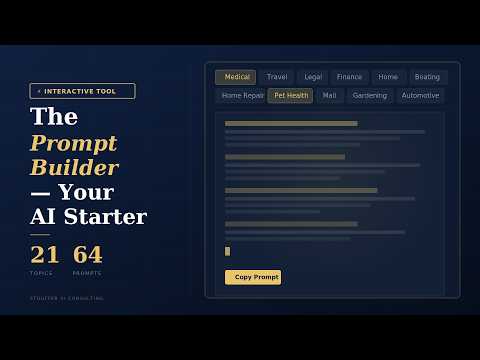
22 topics · 65 ready-made prompts · 3 free categories. Browse health, travel, letters, finances, scam safety, and more.
Want the full prompt library?
Ready-Made Prompts unlocks every category plus the replay library. $9.97 a month — or $97 a year (Best Value — 2 months free). Cancel anytime.
Get Ready-Made Prompts →Support This Free Resource
This guide is free and always will be. If it helped you, a small contribution keeps it going.
Donate with PayPalSecure checkout on PayPal. After you complete your gift, you’ll return here for a brief thank-you.